
BINSONIC
DTS2CS – preserve DTS-HD and add AC3 5.1
Download DTS2CS 1.1.7 for Windows ↓
Complete setup: DTS2cs-1.1.7.exe · 76.68 MB · Windows 10 22H2 / Windows 11, 64-bit.
Log in or register to download the installer. The app itself works without an account.
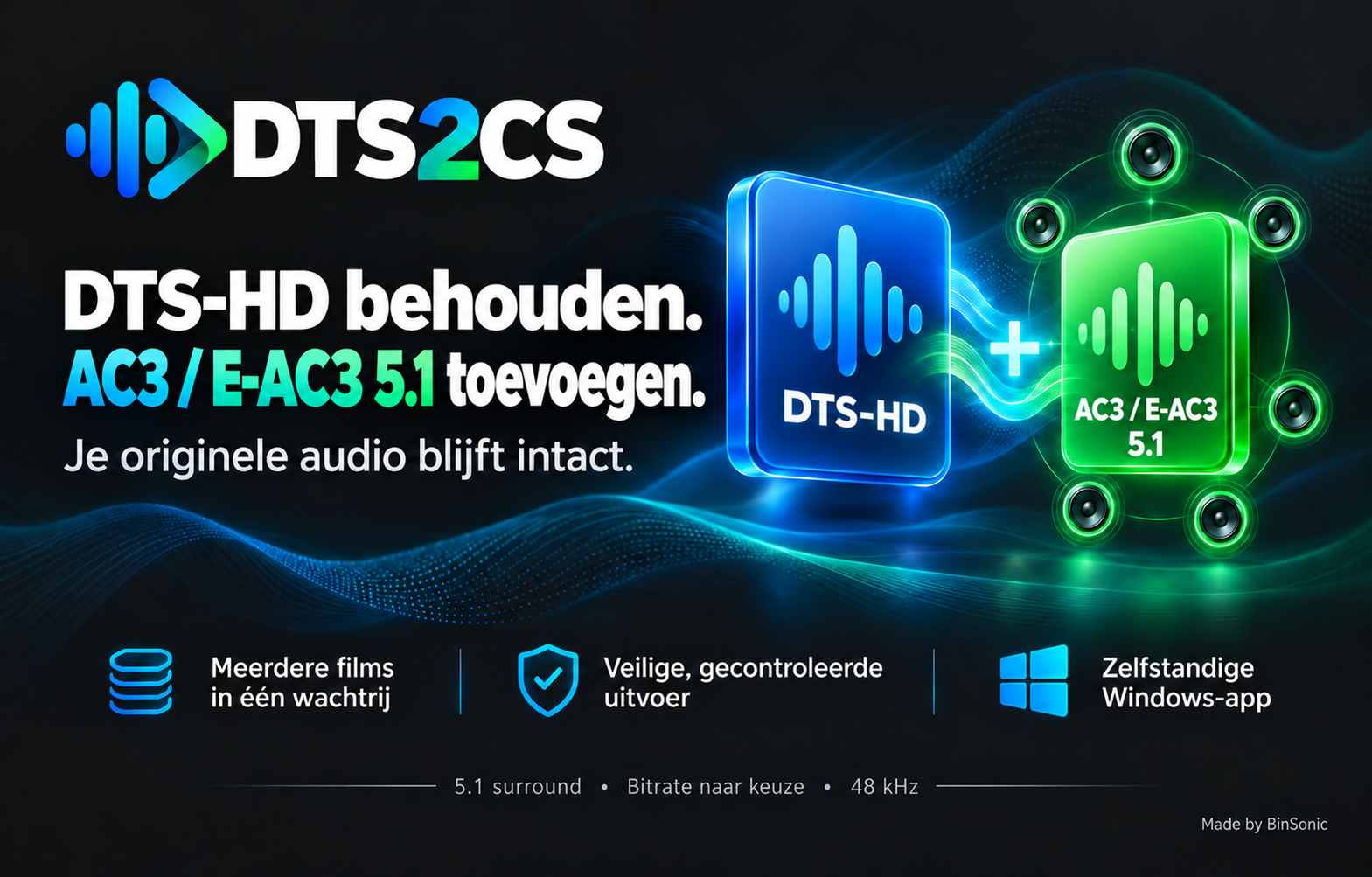
Does your film have DTS audio that your TV, soundbar or media player cannot handle? DTS2CS adds an AC3 or E-AC3 5.1 audio track to an MKV film while preserving the original DTS or DTS-HD audio, so you can choose the track that suits your equipment.
A standalone converter from BinSonic
DTS2CS is a Windows app in English and Dutch with a dark interface. It works independently: no BinSonic catalog, provider account or downloader is required. Choose one film, add several to a queue, or scan a folder for suitable MKV files. You decide when processing starts.
English and Dutch
From version 1.1.7, choose Dutch or English using Taal / Language at the top of the app. The interface, queue, progress and messages change language. The installer is also available in both languages, and your selection is remembered.
Two formats and two audio modes
Preserve DTS-HD and add AC3 or E-AC3 5.1
This mode preserves every original audio track bit-for-bit and adds one AC3 or E-AC3 5.1 track derived from the first DTS track in the second audio position. The remaining original tracks retain their relative order.
The new track has six channels at 48 kHz with automatic peak correction. Choose AC3 bitrates from 384 to 640 kbps or E-AC3 values up to 1536 kbps; the default is 640 kbps. DTS2CS measures audio beforehand and reduces the new track volume when needed. Measurement takes extra time and can be canceled. The language is retained and the track receives a recognizable title. A track previously added by this feature in the same format and language is not added again.
Existing default-track flags remain unchanged; select the new track in your player if needed. AC3 and E-AC3 are compressed audio. The original DTS-HD audio remains available in this mode, and the added track increases file size.
Convert all audio tracks to AC3 or E-AC3 5.1
A separate mode converts all audio tracks to the selected format and re-encodes the original audio. Video is copied without re-encoding. E-AC3 is also known as Dolby Digital Plus; check that your TV, soundbar or player supports the format and selected bitrate. A higher bitrate does not always produce an audible improvement.
One film, a folder or a queue
- One file: choose a local MKV and check the destination and audio mode before starting.
- Multiple films: add files to a queue. The app processes one film at a time and prevents duplicate paths.
- Folder scan: search folders and subfolders for DTS MKVs without a known existing 5.1 track in the selected format. You can exclude films with a track in the other format; this is enabled by default. Files with unknown channel layouts are reported separately.
- Progress: compact rows show film, status and details. Completed films are green, ordinary errors red and warnings yellow.
- Control: follow progress and choose to stop after the current film or cancel processing.
The queue can continue after ordinary file or media errors. Warnings or uncertain replacements stop processing for review. The queue belongs to the current session.
Save safely and check results
By default DTS2CS creates a separate result in the Geconverteerd folder next to the source, without overwriting existing results. Errors, cancellation or changes to the source during processing should not leave an incomplete result.
DTS2CS checks the new AC3 or E-AC3 track and its language. When adding audio, it also compares the audio packets of all original tracks. Checks include video, subtitles, chapters, attachments, metadata, track flags and timestamps; video does not need to be re-encoded.
Replacing the original is a separate explicit option for local and SMB files and requires confirmation. Recovery material is kept until replacement and checks succeed. If the outcome is uncertain, processing stops and recovery material remains available. Ensure a network share has sufficient permissions and free space; separate output is the default.
Update checks
The version number appears at the top of the app. Use the update-check button to check manually for a newer version. You choose whether to open the product page; updates are not checked, downloaded or installed automatically.
Getting started
- Install DTS2CS using DTS2cs-1.1.7.exe.
- Open the app and choose an MKV file, multiple films or a folder scan.
- Choose an audio mode and check the destination.
- Start processing and monitor the window or queue.
- Open the checked result in your player and select the added AC3 or E-AC3 5.1 track if needed.
Everything in one installation
The complete installer includes its own Python and Tk runtime, FFmpeg, FFprobe and their licenses. No separate installation or command-line work is required; conversion runs on your Windows PC.
DTS2CS supports Windows 10 22H2 or Windows 11, 64-bit, and MKV files on local storage or a reachable SMB share. Allow enough free space for results and temporary files. The app is independent of your existing BinSonic installation.
Questions or feedback?
Visit the BinSonic forum for questions, experiences and ideas. Learn more at binsonic.com.
Made by BinSonic